Selecting the correct account
An account is the unique electronic identifier for one patient visit — every note, order and prescription you enter attaches to the account you have selected. Never document or order against a future PRE account. Doing so blocks that visit from being cancelled, and future visits often do need cancelling.
- 1 Search for the patient in Web Acute
Type the patient's W number into the search box at the top right and press the magnifier.

The search box sits top right, beside the refresh icon. - 2 Pick the visit from the account list
You are shown the patient's accounts in date order — future visits at the top, oldest at the bottom. Choose the one matching the visit you are documenting.
This screen is skipped if the patient has only one account, or is currently admitted; you go straight to the correct and only account.
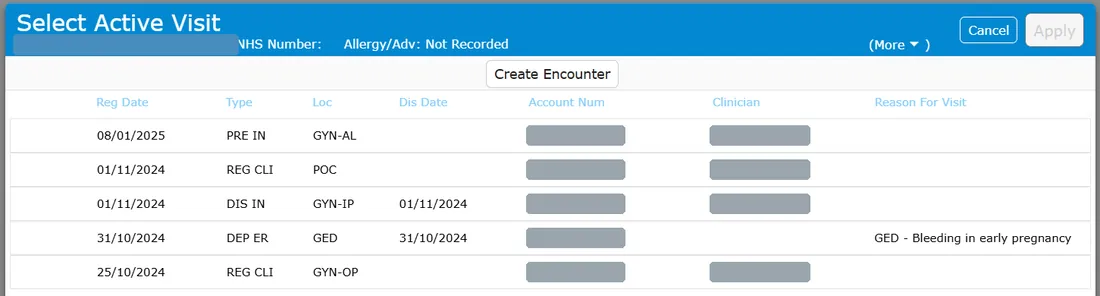
Select Active Visit. Patient identifiers and clinician names are masked here. - 3 Read the Type column before you choose
Type carries both the account status and the patient type —
REG CLIis a registered outpatient,ADM INan admitted inpatient,PRE INa future inpatient admission. Loc and Clinician are the other two columns worth checking: every account should have both, and they usually settle which visit is which. Full glossary at the end of this guide.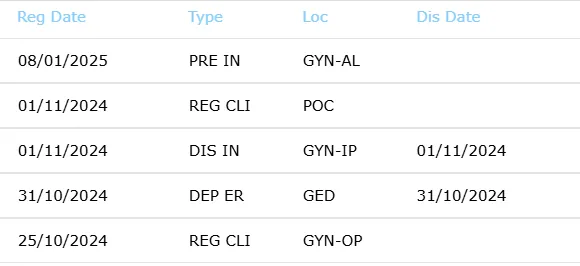
Status and patient type are combined in one code. - 4 Leave future PRE accounts alone
A
PREaccount is a scheduled future outpatient appointment or surgical case. Anything documented against it prevents the visit from being cancelled later, which creates work for someone else to undo. The one exception is an encounter you have created yourself — those also appear as PRE, and are meant to be used. - 5 If no relevant visit exists, create an encounter
Some work has no visit attached to it — documenting a urogynaecology MDT, for example. Use Create Encounter to generate a dummy PRE account you can then document or order against.
Always set an appropriate clinician. This is not always you: residents select the relevant consultant. See the digiCare team's separate encounter user guide for the full process.
Account statuses — where the patient is in the registration process.
- SCH · Scheduled — waitlisted appointment or surgical case. Only pertinent data captured: demographics, providing physician, procedure.
- PRE · Pre-registered / Pre-admitted — scheduled future outpatient appointment or surgical case. Be particularly careful not to document against these. The only exception is encounters, which also appear as PRE.
- REG / ADM · Registered / Admitted — registered refers to outpatients, admitted to inpatients. The patient is currently receiving treatment.
- DIS / DEP · Discharged / Departed — discharged refers to inpatients, departed to outpatients. The patient is no longer receiving treatment and has left the department.
Patient types — what kind of visit it is.
- IN · Inpatient — admission date and time, assigned room and bed, discharge date and time. Normally expected to stay over 24 hours.
- DC · Day Case — minor surgical procedures, day surgery.
- NB · Newborn — counted as an inpatient, with a room and bed, and linked to the mother's inpatient account.
- CLI · Clinical — outpatient attending for a one-day visit, registered against an outpatient location.
- ER · Emergency — outpatient registered in the emergency department, against the ER location.
How each type progresses through the statuses at LWH
- Inpatient (IN) — SCH IN → PRE IN → ADM IN → DIS IN
- Clinical (CLI) — SCH CLI → PRE CLI → REG CLI → DEP CLI
- Day Case (DC) — SCH DC → PRE DC → ADM DC → DIS DC
- Emergency (ER) — no waitlisted status · PRE ER → REG ER → DEP ER
- Newborn (NB) — no waitlisted status · PRE NB → ADM NB → DIS NB
Adapted for anaesthetists from the digiCare team's digiCare User Guide (Types of Accounts), version 1.1, 27 November 2024, by Kirsten Booth, Litty Thomas and Debbie Bragger. That document is the authoritative version — queries to Isteam@lwh.co.uk.